
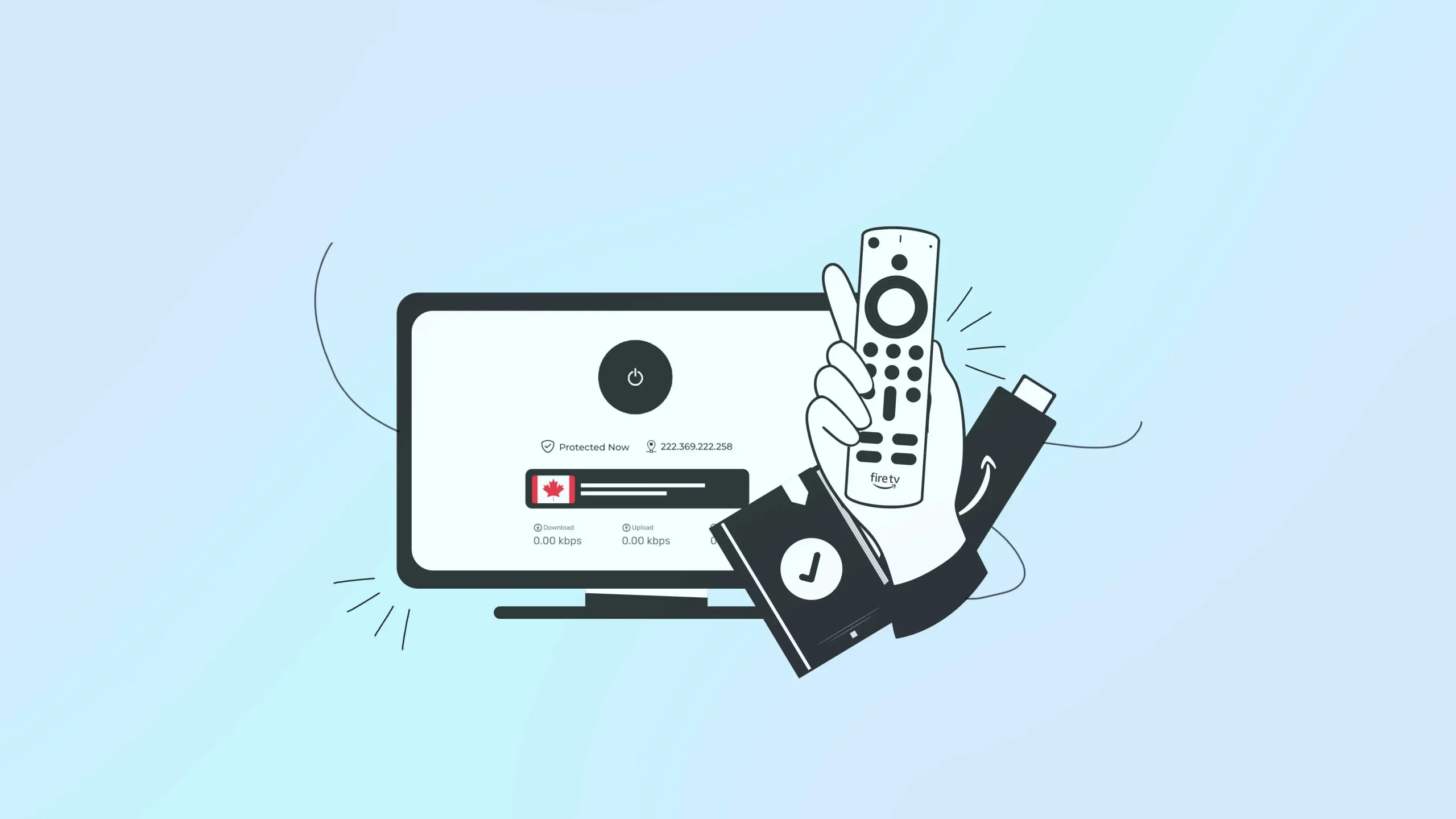
Every time you stream, browse, or download something, your traffic passes through your internet provider first and, in some cases, through shared or public networks too. Learning how to use a VPN on Firestick is one of the easiest ways to add a layer of privacy and control, even if you’ve never set one up before. This blog covers that.
Why you need a VPN for Firestick
Your internet service provider can see your general activity and, in some cases, slow your connection when network traffic is high. A VPN for Firestick masks your IP address, encrypts your traffic, and routes your connection through a secure server to provide steadier speeds.
Unsecured networks also make it easier for others on the same network to intercept unprotected data. A VPN helps shield your Firestick by encrypting your connection at a hotel, airport, or cafe.
How to install a VPN on Firestick
Installing a VPN on Firestick doesn’t require a technical background. You just need a few minutes and your account details. There are two common ways to do it.
Method 1: Install directly from Firestick
- Turn on your Firestick and confirm it’s connected to the internet.
- Go to the search icon on the home screen.
- Type in the name “Symlex VPN”
- Select the official app from the results and choose Download.
- Once installed, open the app and log in with your account details.
- Choose a server location and connect.
This method uses a native Fire TV app and is the most straightforward option for most people.
Method 2: Install through a downloader app
If your provider isn’t listed in the Amazon Appstore, you can usually sideload it instead.
- Get the official APK file link from your provider’s website or support team.
- Go to Settings, then My Fire TV, then Developer options, and turn on apps from unknown sources.
- Open the Downloader app and enter the APK link.
- Download and install the file.
- Launch the app, log in, and connect to a server.
Only use APK files from the provider’s official website to avoid unsafe downloads. Some newer Firestick software versions may not support sideloading, so check compatibility first.
How to set up Symlex VPN on Firestick after installation
Installing the app is only half the process. Here’s how to set up a VPN on Firestick so it actually protects your connection going forward.
Once installed, sign in with the account credentials you created when you subscribed. From there, pick a server location. If privacy and stable speeds are your main goal, a server close to your physical location usually performs best. If you’re trying to reach content available in a specific region, choose a server there instead.
After connecting, give it a few seconds to establish the link, then open your streaming app as usual. A properly configured VPN runs quietly in the background without interrupting your day-to-day Firestick use.
What makes the best VPN for Firestick
Choosing the best VPN for Firestick comes down to a handful of practical factors rather than one standout feature. Here’s what’s worth checking before committing to a provider.
| Factor | What to look for |
| Dedicated Fire TV app | A native app is easier to install, update, and troubleshoot than a sideloaded one. |
| Encryption and protocols | Modern options like OpenVPN or WireGuard, which balance speed and security well. |
| Server locations | More locations generally mean better performance, since you can connect to a server physically closer to you. |
| Logging policy | A provider that doesn’t store your browsing activity offers stronger privacy protection. |
| Consistent speeds | Streaming in HD or 4K needs a stable connection, so real-world speed and reviews matter. |
| Simultaneous connections | Check how many devices your plan covers if you use more than one. |
| Customer support | Live chat or clear guides make setup issues faster to resolve. |
| Transparent pricing | Plans without hidden renewal costs are easier to budget for long-term. |
Free VPNs can work for occasional use, but they often come with data caps, fewer servers, or slower speeds. If Firestick streaming is part of your regular routine, a paid plan built around the features above tends to hold up better over time.
How to tell your VPN is actually working
Most apps show a clear “connected” label once the server link is active. You can also visit a site that displays your IP address and location; if it matches your selected server rather than your real location, the VPN is working correctly.
If a stream loads normally and plays without unexpected interruptions, that’s a good sign your connection is holding steady under everyday use.
Final thoughts
Learning how to use a VPN on Firestick is a small setup step that can make a real difference in everyday privacy and consistency. Once it’s installed, connected, and confirmed working, you get more control over how your data moves while you stream, browse, or use other apps on your device. So why wait? Try Symlex VPN and let us know what you think!
Frequently asked questions
Yes, though free plans typically come with limited servers, data caps, or slower speeds. A paid plan usually fits better if you stream often.
Not exactly, but one with a dedicated Fire TV app, solid speeds, and modern encryption will generally be easier to use and more reliable.
No. Installing a VPN app is no different from installing any other app, and it doesn’t involve modifying the device’s hardware.
Sometimes. By reducing provider-side throttling, a VPN can help maintain steadier speeds, especially if your connection tends to slow during peak hours.